Salon How-Tos
Cheat Sheets for Shortcuts
Exchanging Goods
EOD Mistakes & Errors – What to do
Cheat Sheet Transactions
Shortcuts Software
Shortcuts Frozen – White Box etc
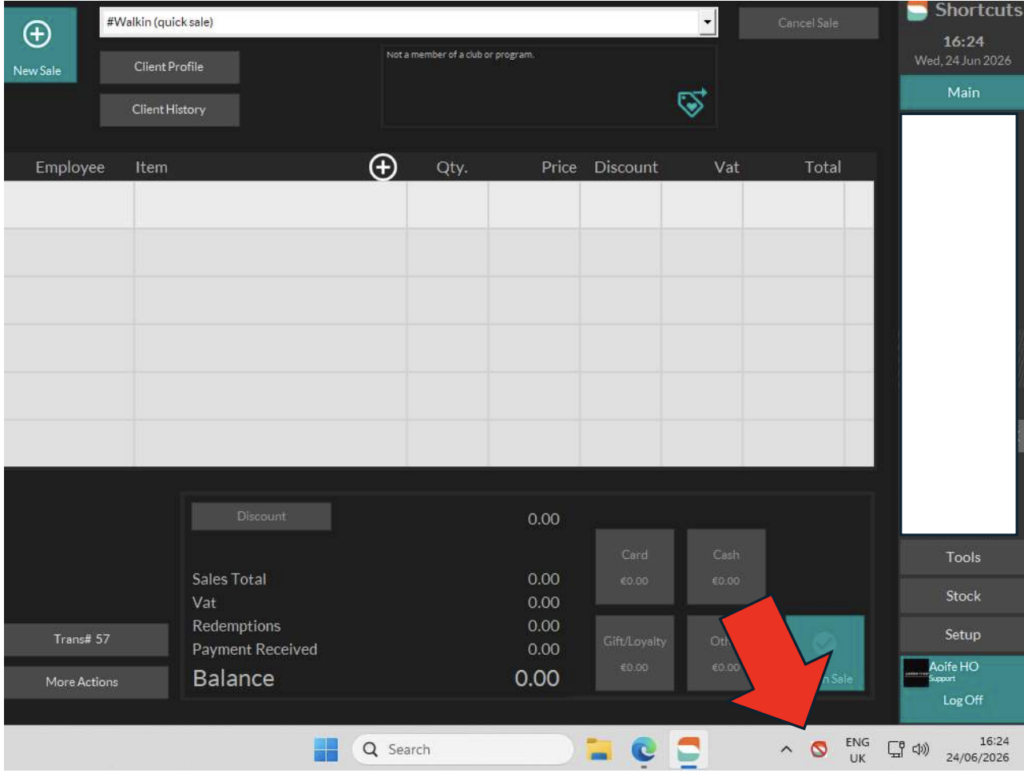
- Select the icon as shown on the screen. A pop up will display “Shortcuts POS – Force Stop”.
- Once this is selected, Shortcuts will close instantly.
- You can then reopen Shortcuts.

Cash V Card
Wrong Client Checked Out – OVERPAID
Wrong Client Checked Out – UNDERPAID
IT How-Tos
How to reset Cisco desk phones
- Please do 1 phone at a time!
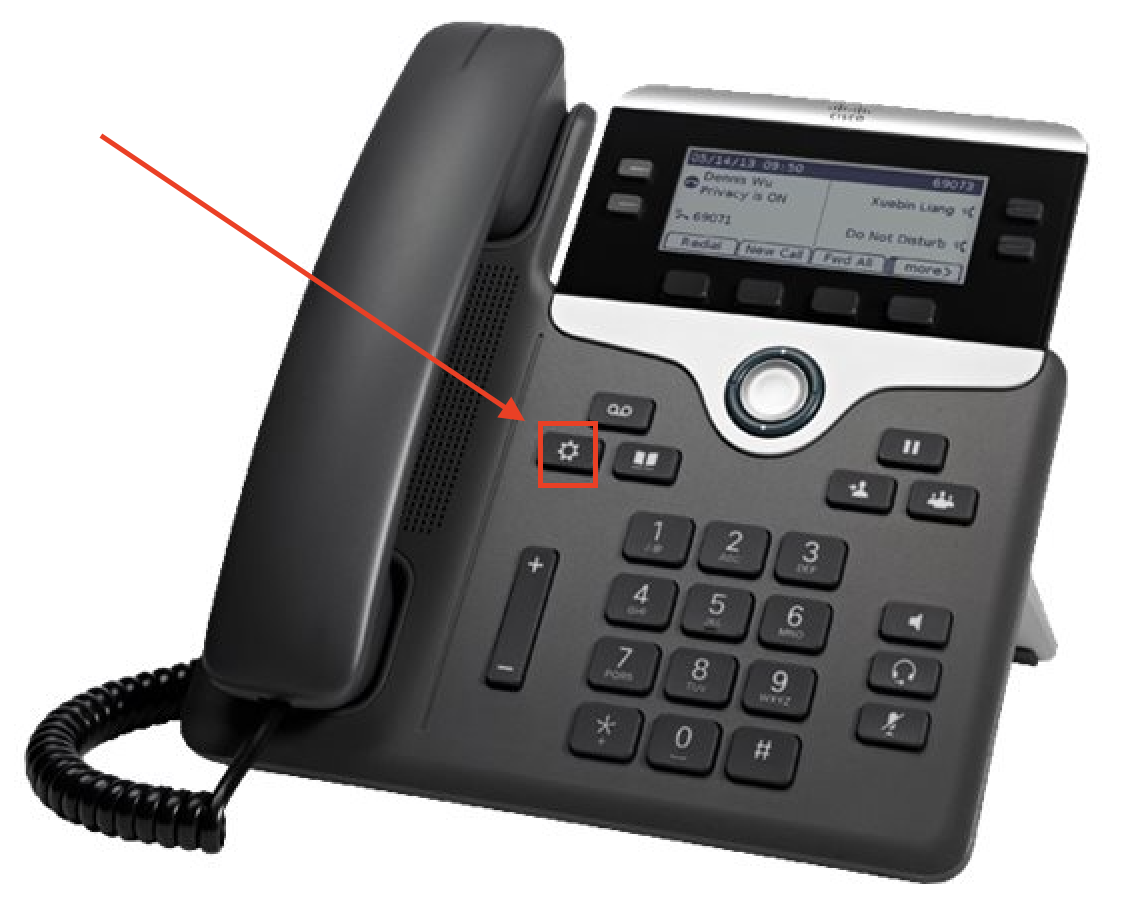
- Press the settings button, This is shaped like a gear cog and is located under the voicemail button. See Picture.
- On the Dial pad press 5, 5, 1 and then click yes.
- The desk phone will now power cycle a few times, this is normal.
- This will clear any errors or issues that may be caused by the phone itself. If the issue still exists then please log a ticket here. Thank you.
Sending Email Attachments – Internal vs External
PAX Battery removal / replacement
Xerox B310 page count
Xerox Printer Order
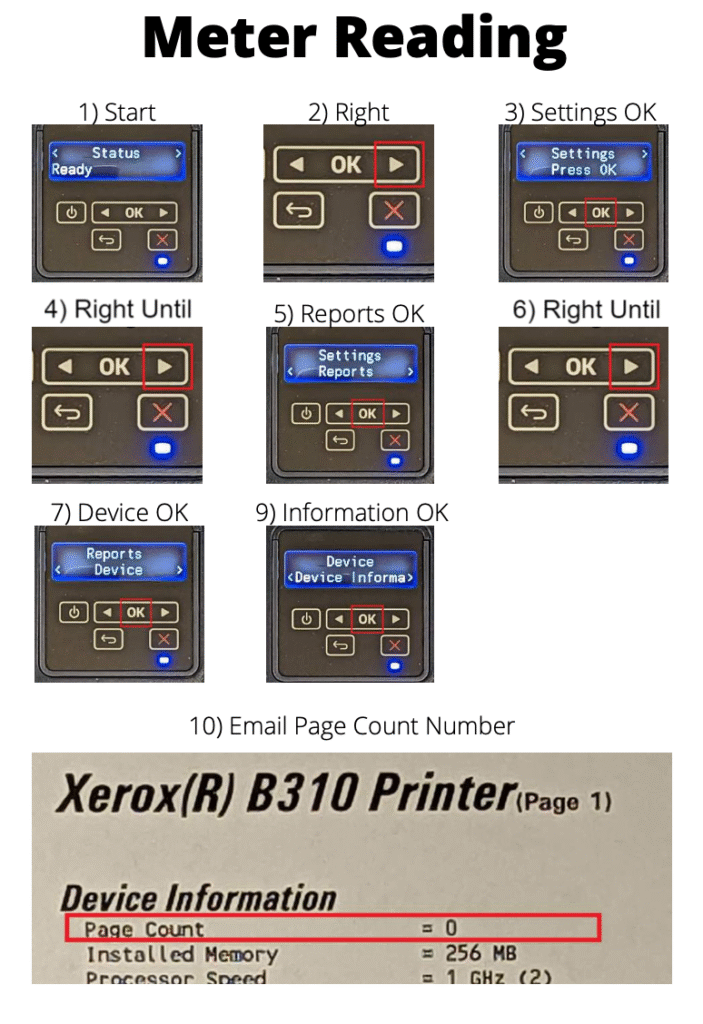
- Follow the previous how to first – Xerox B310 page count.
- Go to the main helpdesk and log a ticket under Xerox Ink Order
- First Name = Manager first Name
- Last Name = Manager Last Name
- Salon Email
- Company = Peter Mark
- Phone = Salon Phone number
- Address = Salon Address – Include Eircode
- Town/City = City of salon.
- Select the correct option: Republic of Ireland or Northern Ireland
Serial number = This is on the page you printed on the previous step
Meter Reading: Black Impressions – this is the total page count.
Toner *. Select what the printer requires. IE no salon printers require colour.
- Black
- Waste Toner Bottle
Then click submit.
Manager Email mobile Setup
Fulfilment Orders
Step 1: Click the Fulfilment button in the HUB (see image).
Step 2: Log in with your Salon Number (3 digits). Your password is PeterMarkXXX, where XXX is your salon number
Step 3: The big dark blue button lets you order by category (currently just Nespresso Capsules).
At the bottom of the page, you’ll find your order and delivery history.
Step 4: Click Nespresso Capsules to open the order screen — it works just like any online shopping site. You may also see special notes from the back office team, and you can save your order to complete later.
Step 5: Once your order is placed, you can track its status at the bottom of the page, and you’ll get email updates too.
Step 6: Click on an order (OPEN) to see any specific notes about it.
When your order arrives, please check that the quantities match, then mark it has RECEIVED. This step is important — it confirms the order is fully complete on both ends.
Spendesk Card – Salon Expenses
With Spendesk cards (card for salon expenses), you will no longer need to send physical receipts to head office. Instead, you simply upload a photo of the receipt directly in the Spendesk app after making a purchase. Once uploaded, the receipt can be safely disposed of. This will save time for everyone and simplify the entire expense process, not mentioning that It will make life easier to cash up at the end of they day, as there will be no money taken from the till.
To help you get started, we have prepared a short video walkthrough explaining how to use your Spendesk card and how to upload receipts correctly.
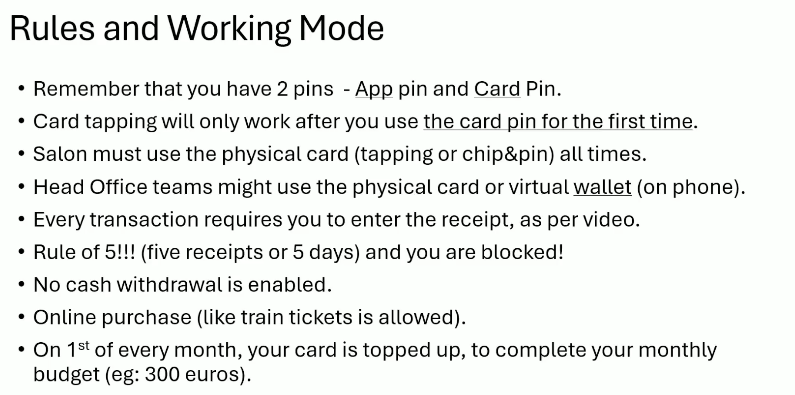
Please take a few minutes to watch the video here:
Allow Sign In Requests for O365 on Android – 2FA / 2Digits
HR & Payroll (People XD)
- Scan the QR code with your personal phone and download the People XD app.
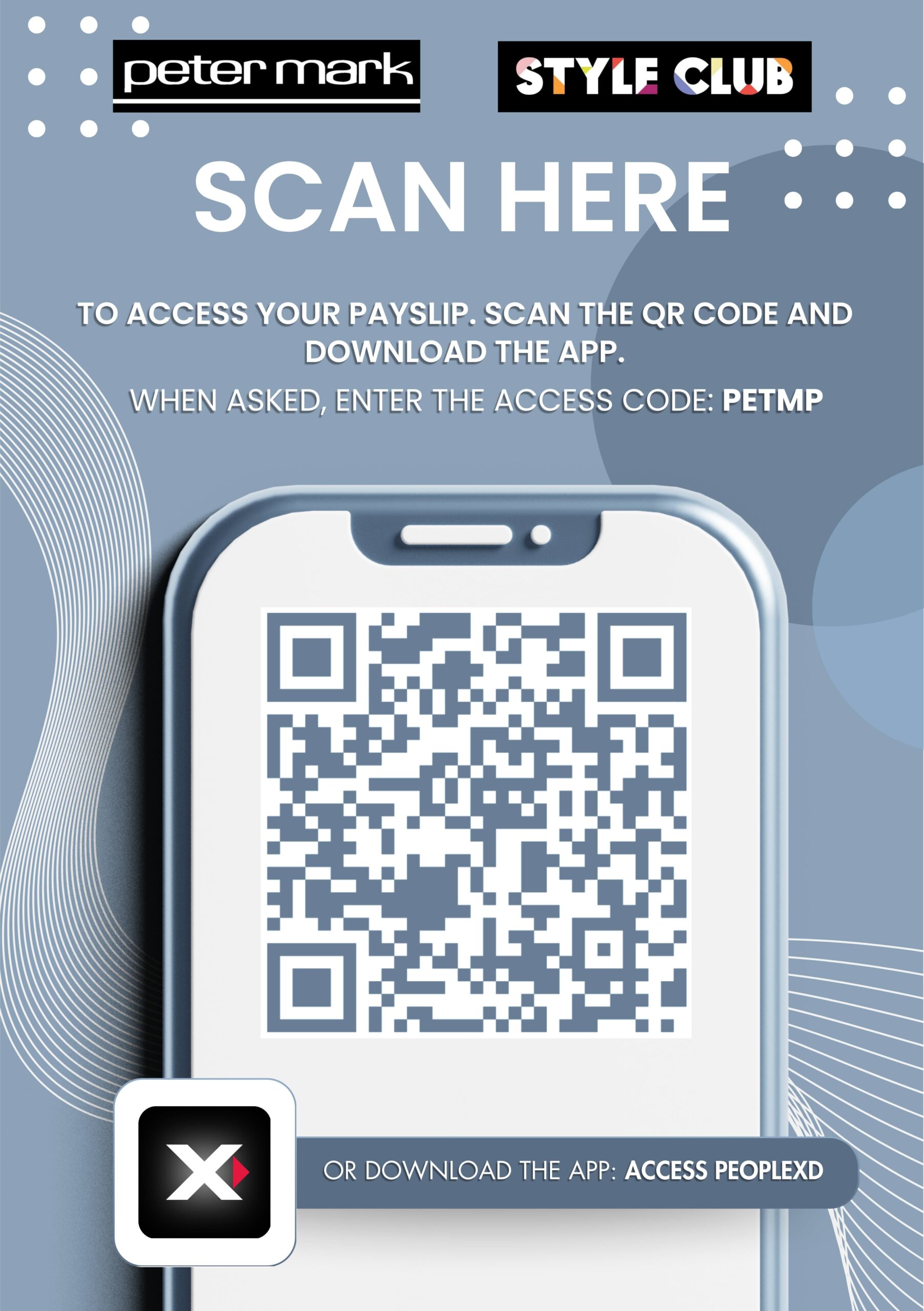
- When the app is downloaded, you will see this screen when you open the app.
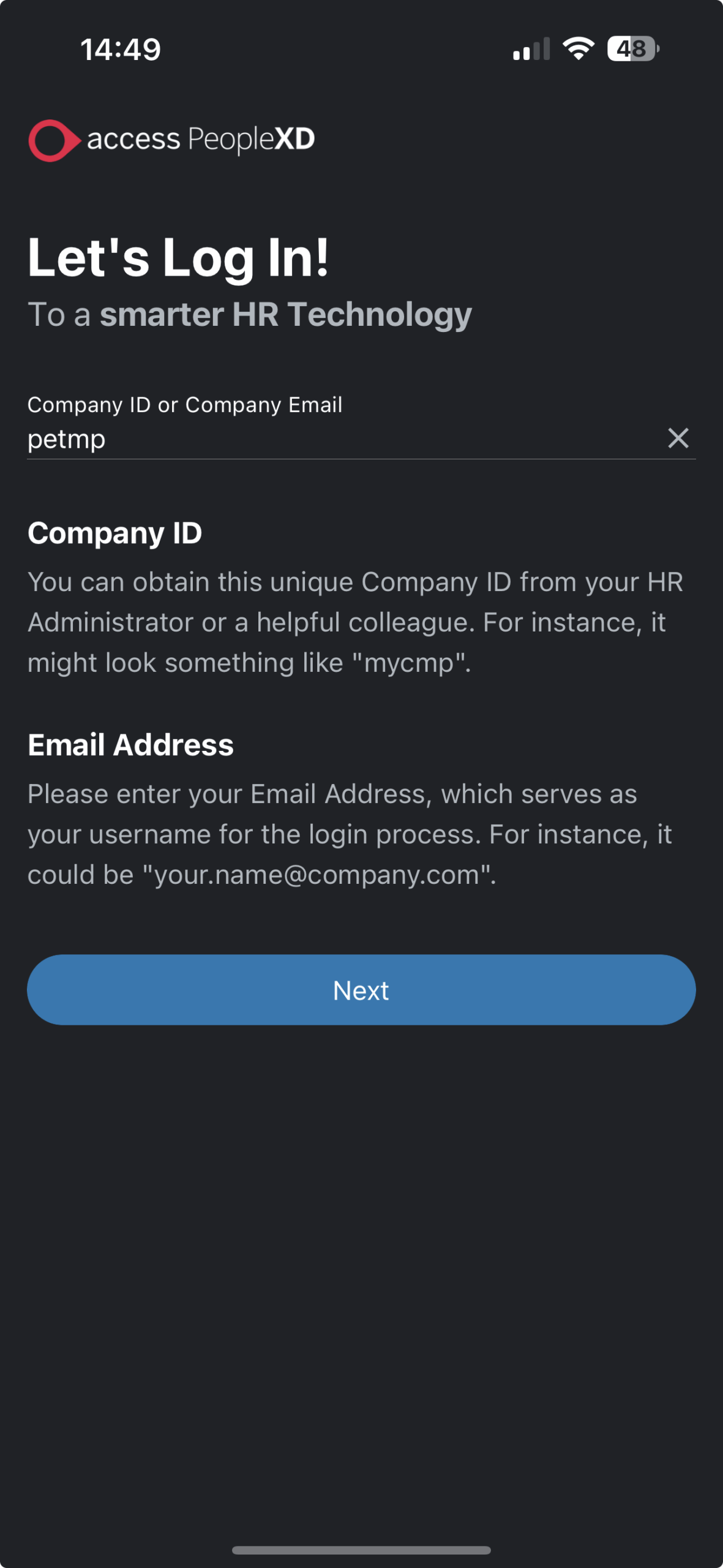
- DO NOT ENTER your email here! Enter the company code which is PETMP
- You will then be asked to enter your email. (this email is the email your payslips use to go to).
- You should be able to login to the app.
IMPORTANT NOTE
If you still face issues and have followed the above steps and have asked someone around you who has successfully logged in you should log a ticket with IT on the help desk page. If you need to change any personal details including the email you login with, please log a ticket with HR. You can do this on the help desk page too.